
Connecting Social Accounts
Connect Facebook Pages, Instagram Business, TikTok, Pinterest, and other platforms in Hub Settings so YSH can publish your approved content automatically.
Where to Connect
Open Hub Settings (gear icon in the hub switcher) and scroll to the Connected Social Accounts card. The same card is offered as step 2 of the onboarding wizard.
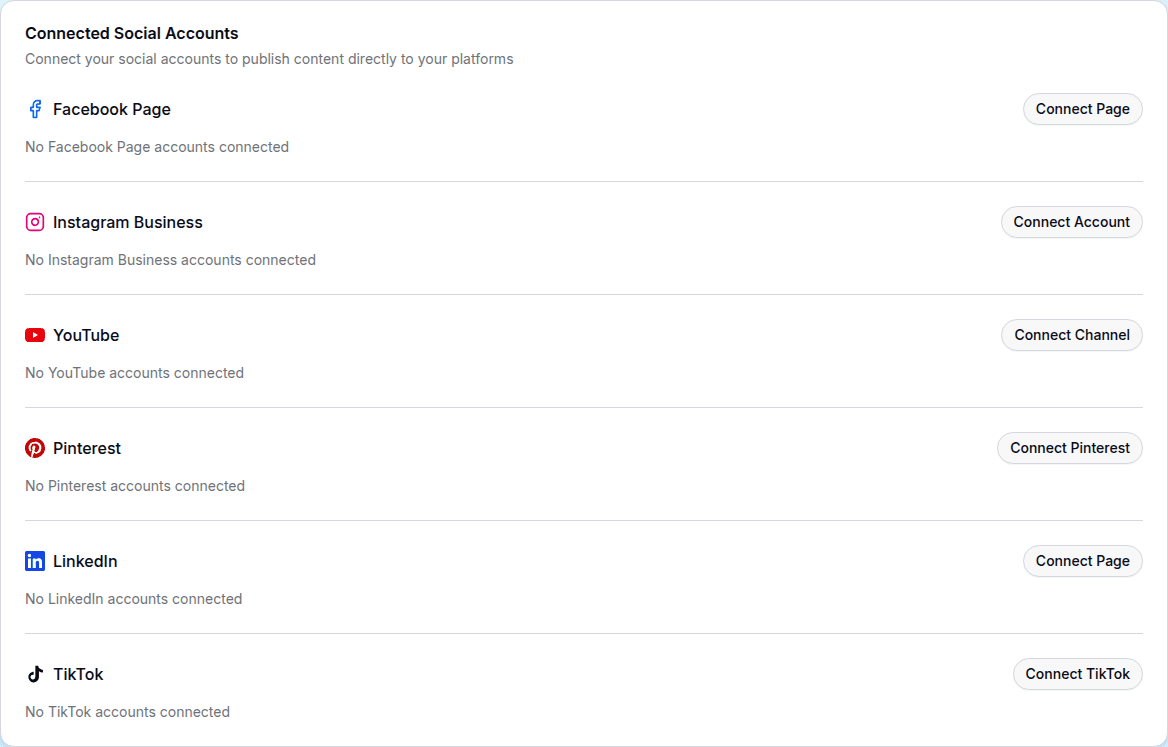
Each connected account shows its display name (page name or username) and offers a disconnect button. Admins also get a metrics shortcut per account.
Supported Platforms
- Facebook Page and Instagram Business — connected through a single Meta authorization. You choose which Facebook Pages to grant access to; Instagram accounts linked to those pages are picked up automatically.
- TikTok, Pinterest, LinkedIn, YouTube, X (Twitter), and Threads — each connects through its own authorization dialog.
Meta (Facebook & Instagram) Notes
- Instagram publishing requires an Instagram Business (professional) account linked to a Facebook Page. In the Instagram app: Settings → Account → Switch to Professional Account, then link it to your page.
- You need a Page Role (or a Business Manager task that allows creating content) on the pages you connect. If something is missing, YSH shows a detailed message after the authorization with instructions on what to fix in Meta Business Settings.
- To add pages you skipped during the first authorization, simply connect Facebook again and select the additional pages.
Disconnecting and Reconnecting
Use the trash icon next to an account to disconnect it (with confirmation). Reconnecting works the same as the initial connection. Disconnecting an account does not delete already-published posts.
Using Accounts in Content
Social accounts are selected per piece of content: when you create or edit content, you pick the target accounts for that post. Platform-specific options appear inline — for example, TikTok privacy settings or the Pinterest board to pin to. See Creating Content.