
Content Calendars
Content calendars group your content into projects or campaigns. Use Grid, Calendar, and List views with filters to manage everything from drafts to published posts.
The Content Calendars Page
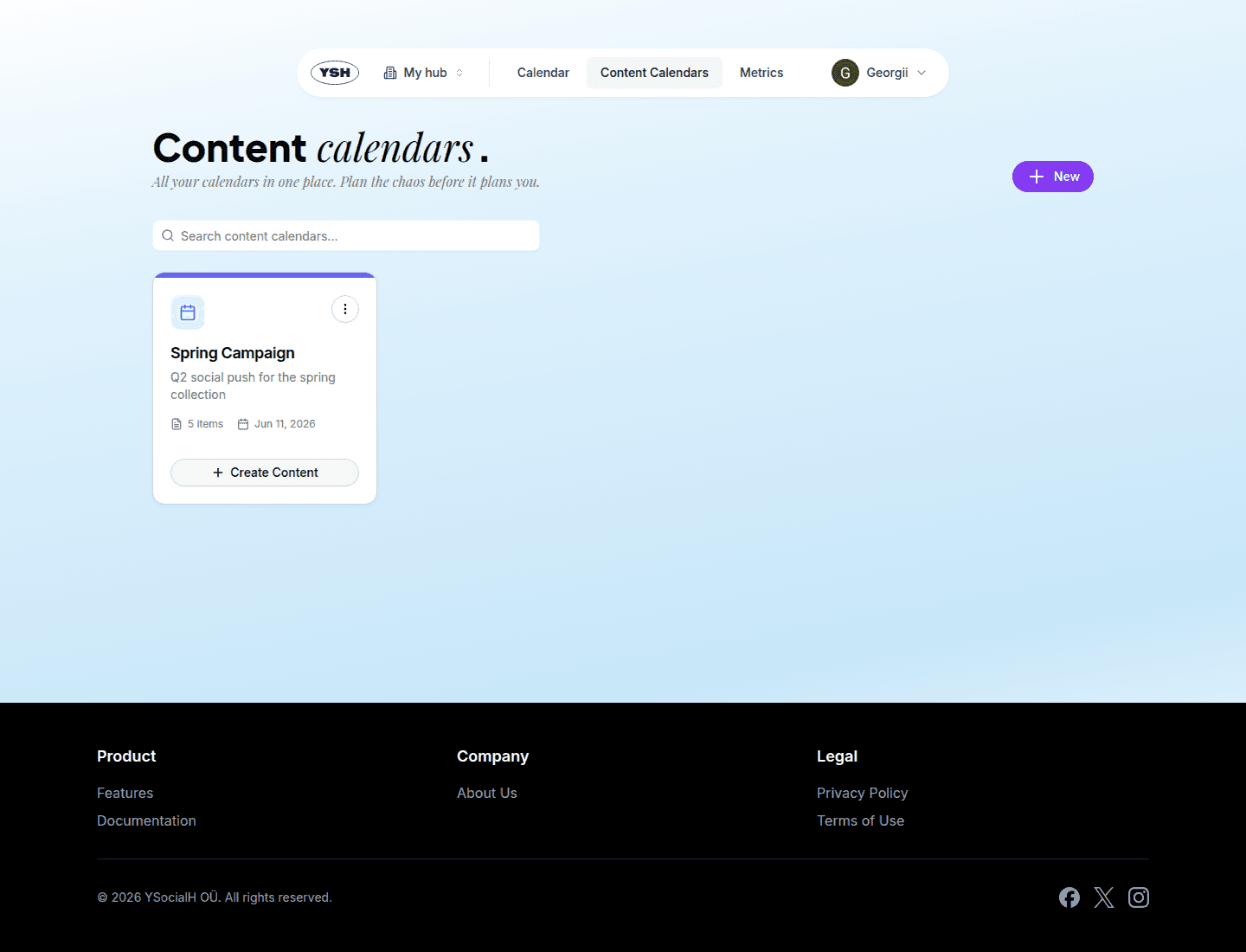
Content Calendars in the top navigation lists all calendars of the active hub as cards with name, description, and due date. From a card you can open, edit, or delete a calendar (deleting requires the admin role).
Creating a Calendar
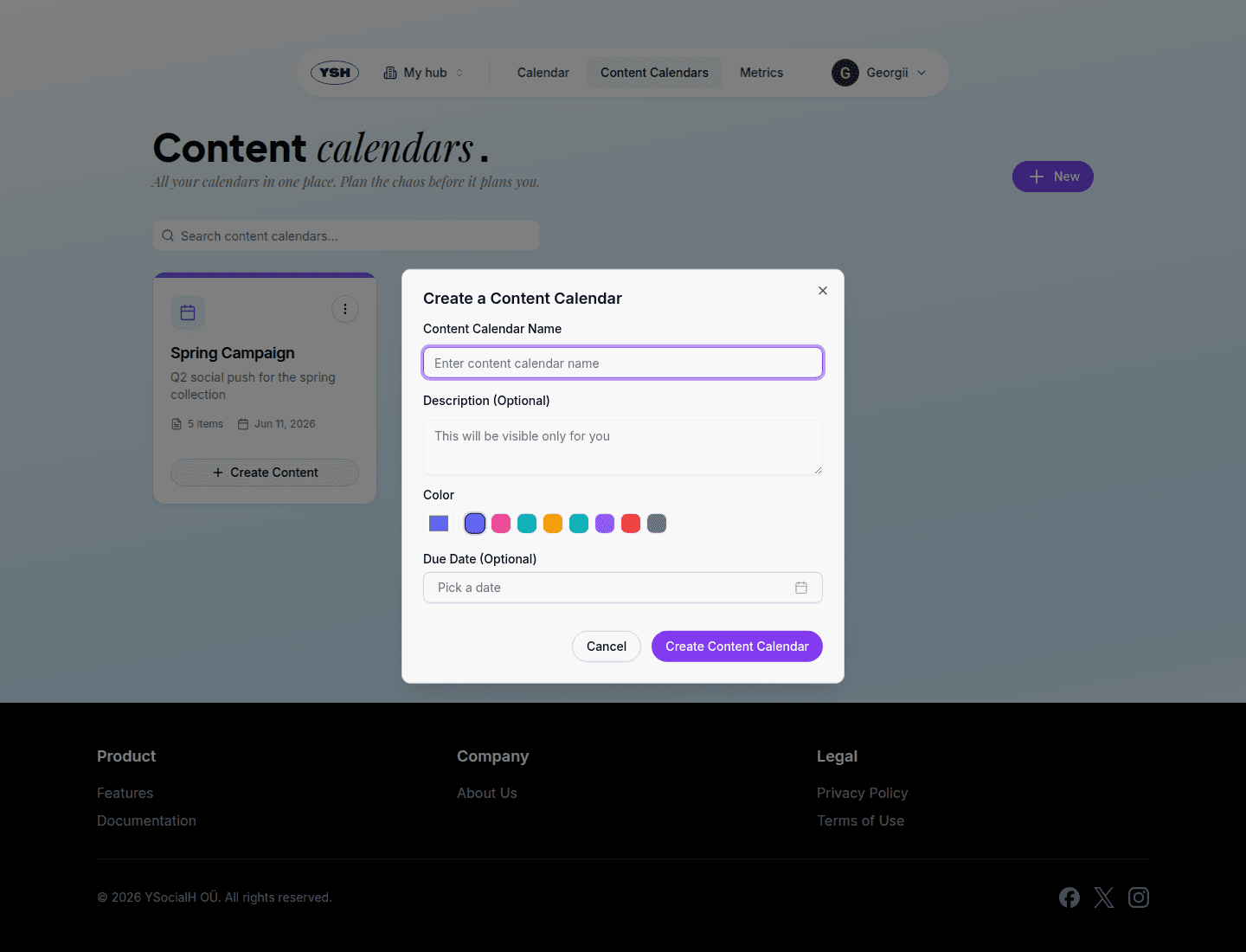
Click New and fill in the dialog: name, optional description, an optional color label, and an optional due date.
Inside a Calendar
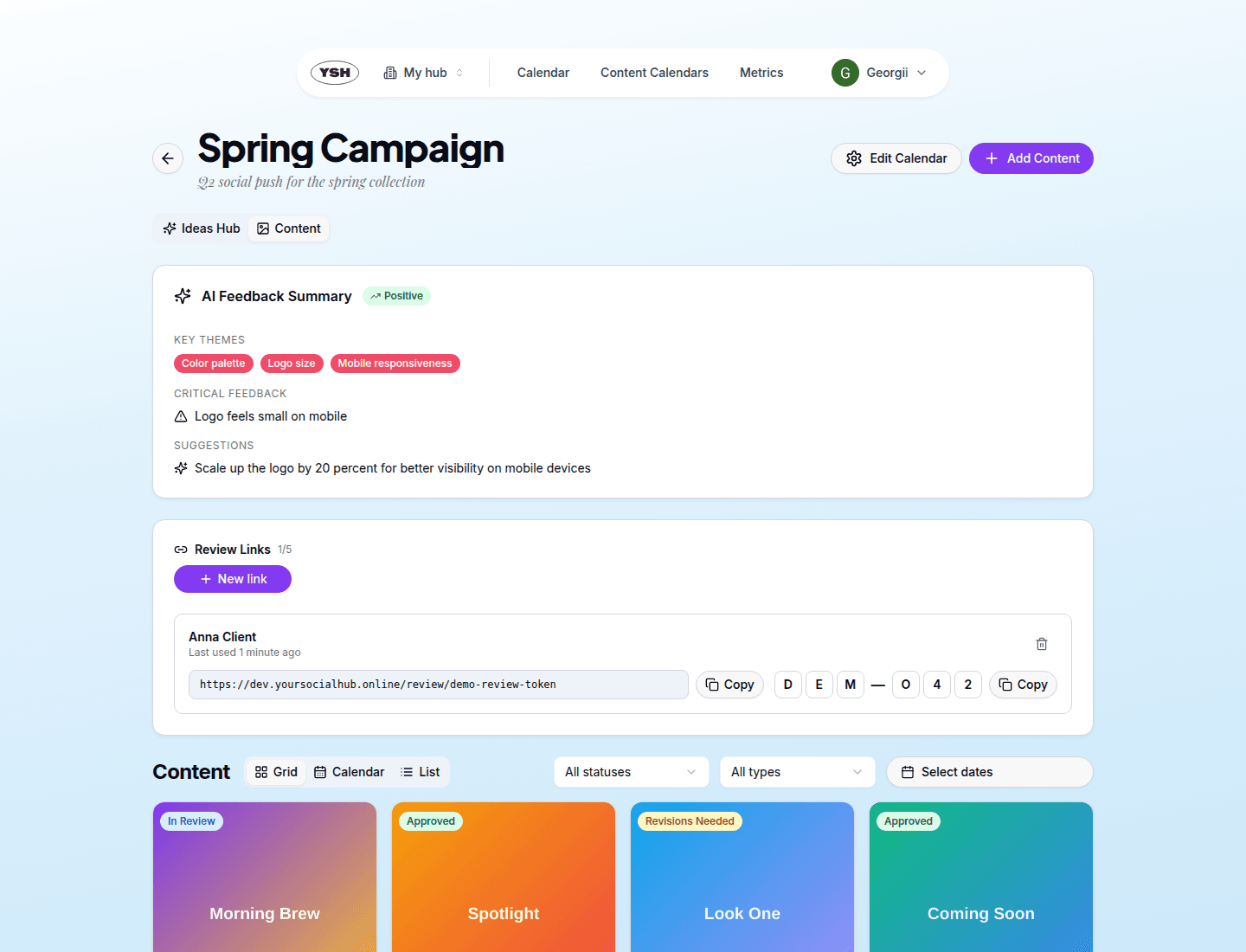
A calendar page has two tabs: Ideas Hub for capturing and developing ideas (see Idea Hub) and Content for the actual posts. The overview also shows the Review Links card and the AI Feedback Summary — see Review & Approval.
The Add Content button in the header starts the content creation flow.
Views
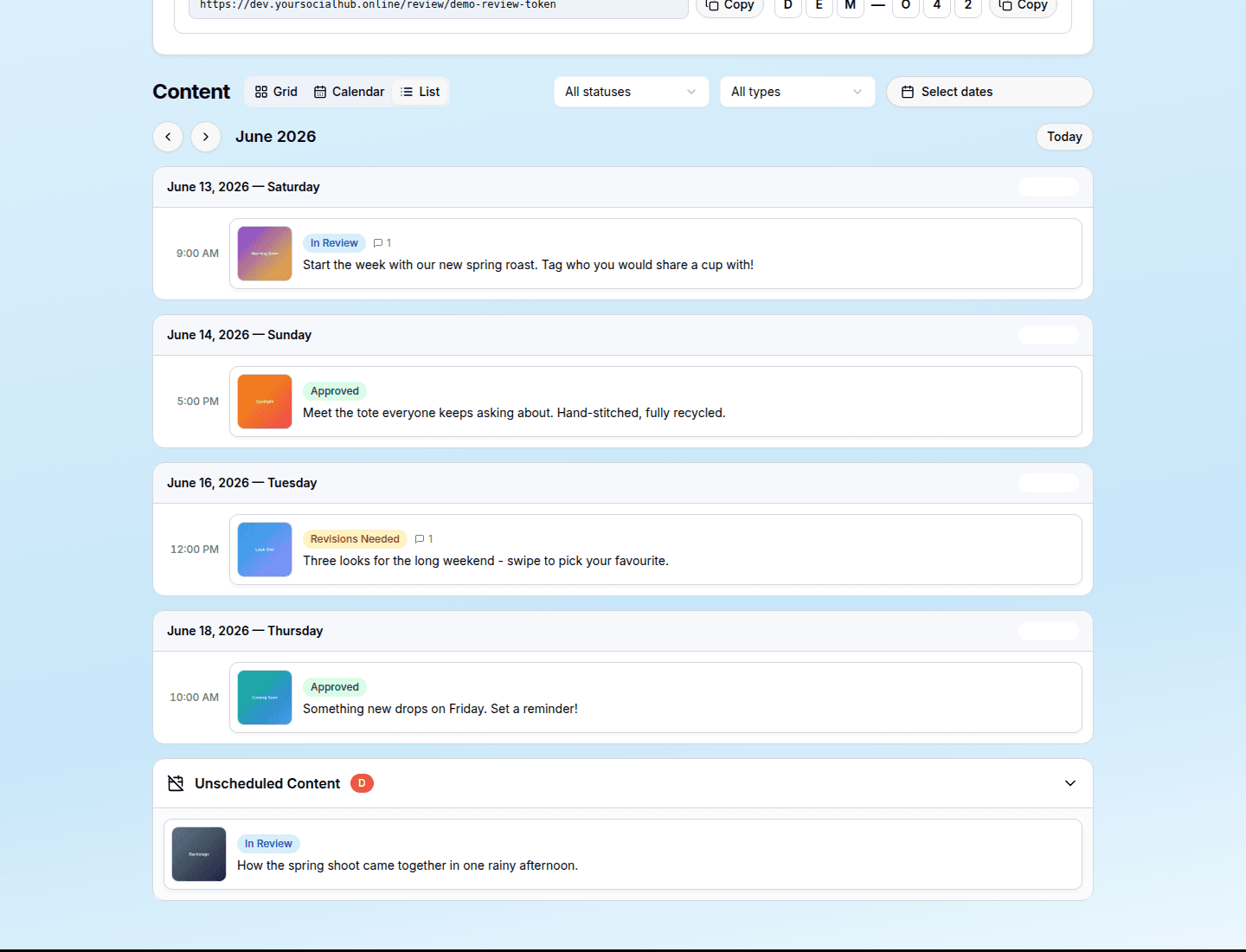
The Content section offers three views, switchable with the Grid / Calendar / List toggle. The active view is part of the URL (?view=grid|calendar|list), so links you share open in the same view.
Grid View
Cards with previews, status badges, and quick actions — best for reviewing what exists.
Calendar View
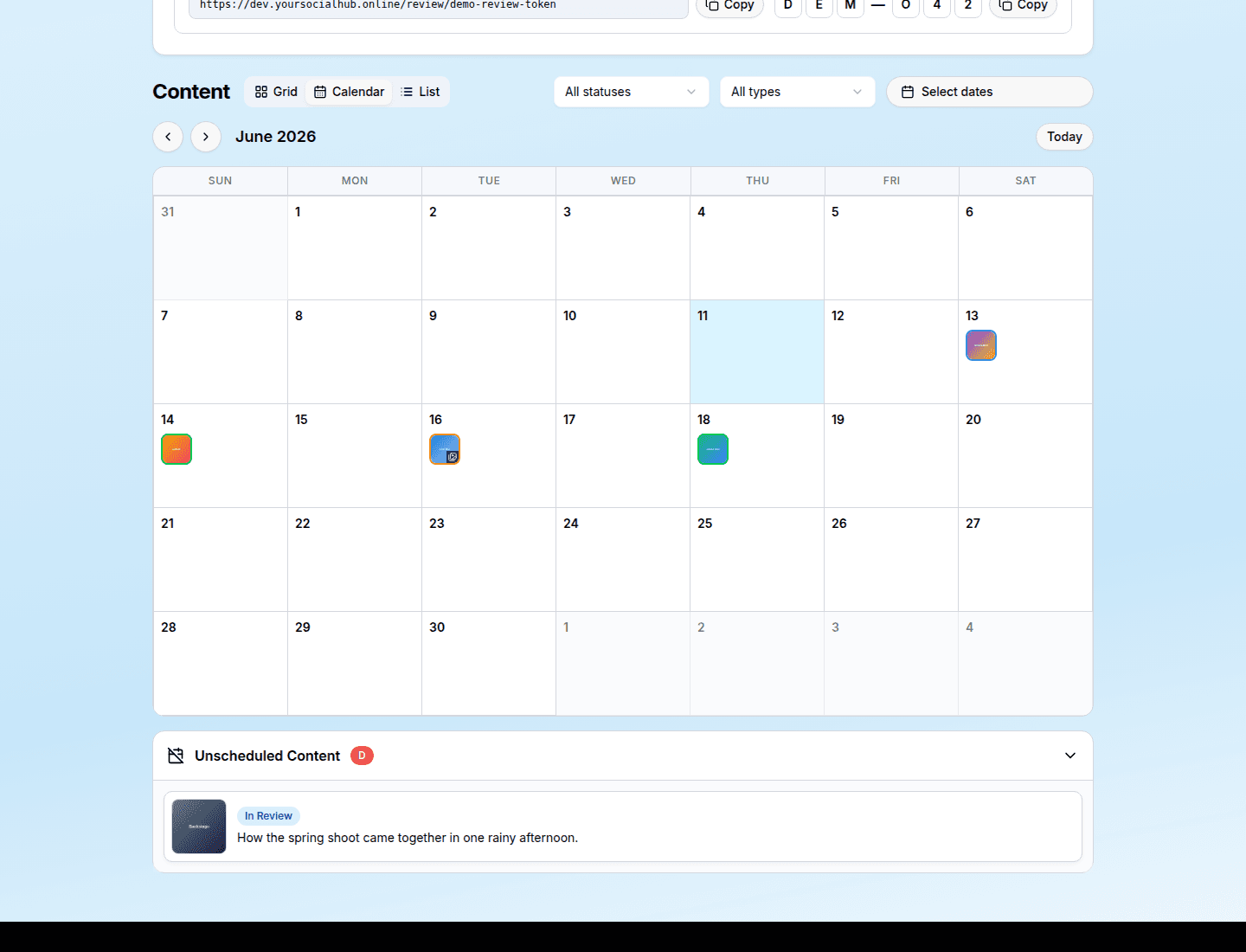
A month grid that places each piece of content on its publication date. Navigate months with the arrows (the month is kept in the URL as ?month=YYYY-MM). Content without a publication date is collected in the collapsible Unscheduled Content section below the calendar.
List View
A compact table of all content — useful for bulk inspection of statuses and dates.
Filters
Filter the content section by status, type (post, story, carousel), and a date range. Filters live in the URL too, so a filtered view can be shared with a teammate. Clear filters resets everything.