
Review & Approval
Share PIN-protected review links with clients. Reviewers approve, request revisions, or decline content, leave pinpoint comments, and suggest caption edits — no account needed.
How Review Works
New content enters the In Review status automatically (unless review was skipped). Reviewers look at it through a review link and either approve it, request revisions, or decline it. Content that needs work gets a new version and goes back to review.
Review Links
Review links are managed on the content calendar overview in the Review Links card. Create one link per reviewer — up to five per calendar — so you can track who said what.
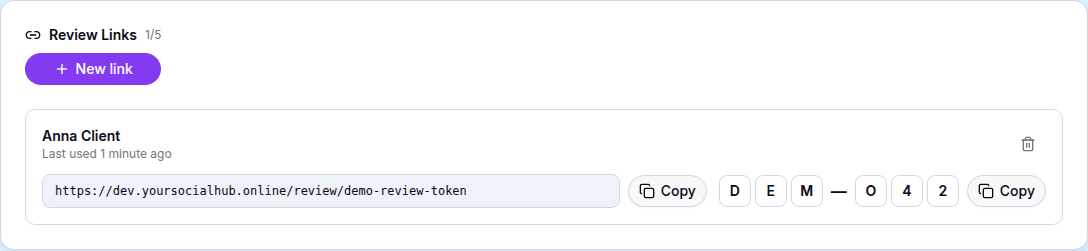
Click New link, enter the reviewer's name (and optionally their email), and YSH generates a personal URL plus a 6-character PIN. Send both to the reviewer — the PIN is their key, so share it through a separate channel if you want extra safety.
The Reviewer's Experience
The reviewer opens the link and enters the PIN.
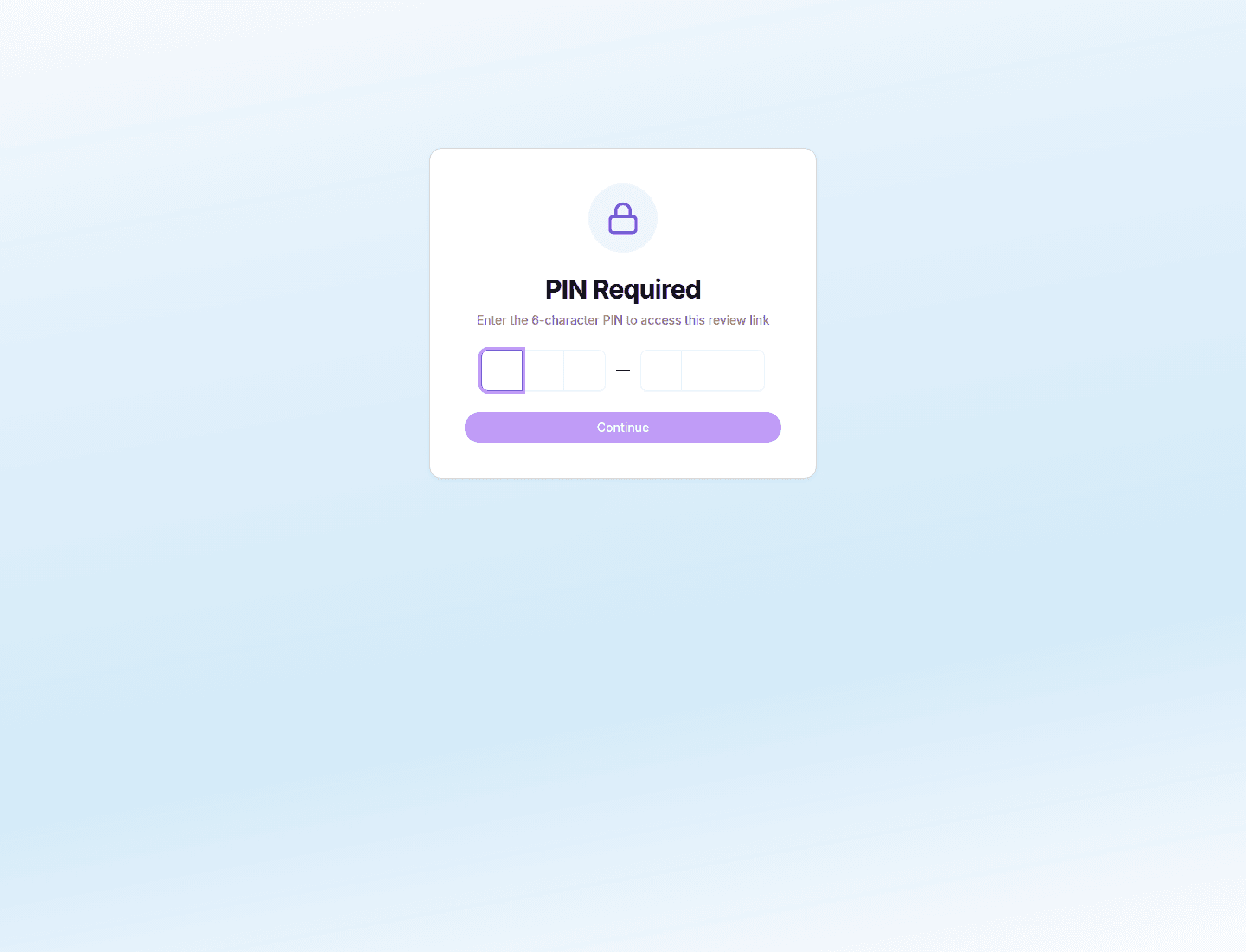
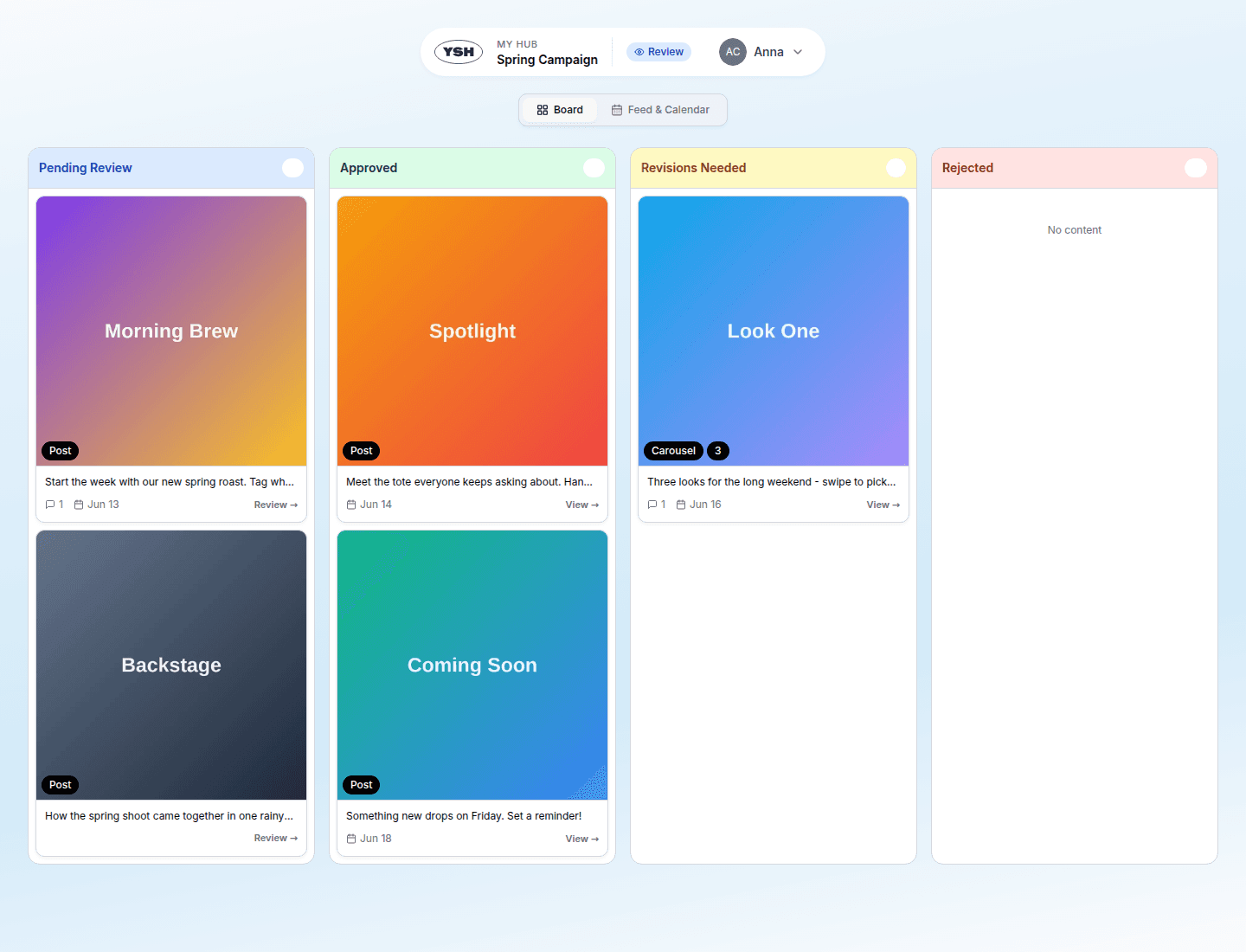
After unlocking, they see the calendar's content in two views:
Board View
Content grouped into columns by review status — what is waiting for them, what needs revisions, what is approved or rejected.
Calendar & Feed View
A month calendar combined with a feed, showing the content in its planned publication order.

Reviewing a Single Piece of Content
Clicking a card opens the content review page:
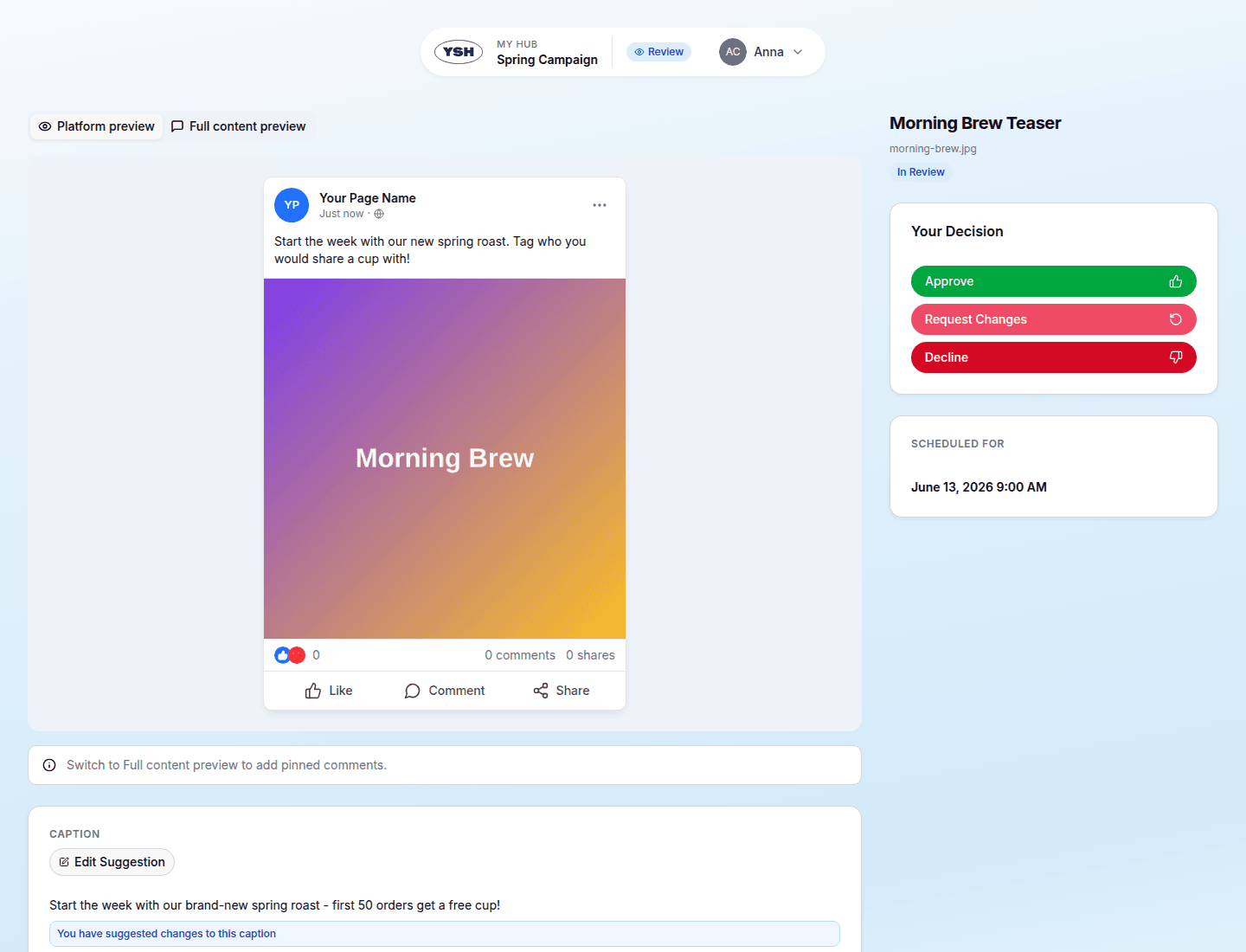
Here the reviewer can:
- Approve the content.
- Request revisions with a message describing what to change.
- Decline the content (with confirmation).
- Leave pinpoint comments — click directly on the image or video to anchor a comment to that exact spot.
- Suggest caption edits in the caption panel.
Acting on Feedback
Back in YSH, the team sees everything on the content detail page:
- Pinpoint comments appear on the media preview.
- Caption suggestions can be accepted (the caption is updated) or rejected.
- A task is created automatically for every comment, revision request, and caption suggestion, so nothing gets lost.
After updating the content, use Send to Review to start the next round.
AI Feedback Summary
The calendar overview shows an AI Feedback Summary — an automatic digest of all reviewer feedback in the calendar with an overall sentiment (positive, neutral, or needs attention). Useful when several reviewers left many comments and you need the big picture.